Magpie Tutorial: AI Game Upscaling Perfect for GalGames

Preface
A while ago, I discovered a very useful open-source project on GitHub: Magpie https://github.com/Blinue/Magpie
"Magpie is a lightweight window scaling tool with multiple efficient scaling algorithms and filters built-in. It is mainly used to enhance game graphics and allow games that do not support full-screen to be displayed in full screen." -- A brief introduction from the author
For older galgames, due to compatibility issues, I believe many of you have encountered problems where the window cannot be maximized, or even if it is maximized, the game graphics are blurry.
After my attempts, I found that Magpie can effectively solve the following issues:
- Maximize gal windows that cannot be maximized while significantly improving graphics quality during gameplay
- For newer gals, it can also enhance graphics quality to 4k (depending on computer configuration, mainly the graphics card)
Highly recommend everyone to give it a try!
Download
Here is the download link for the GitHub repo: https://github.com/Blinue/Magpie/releases
Usage
After extracting, click the Magpie.exe file to run it directly.
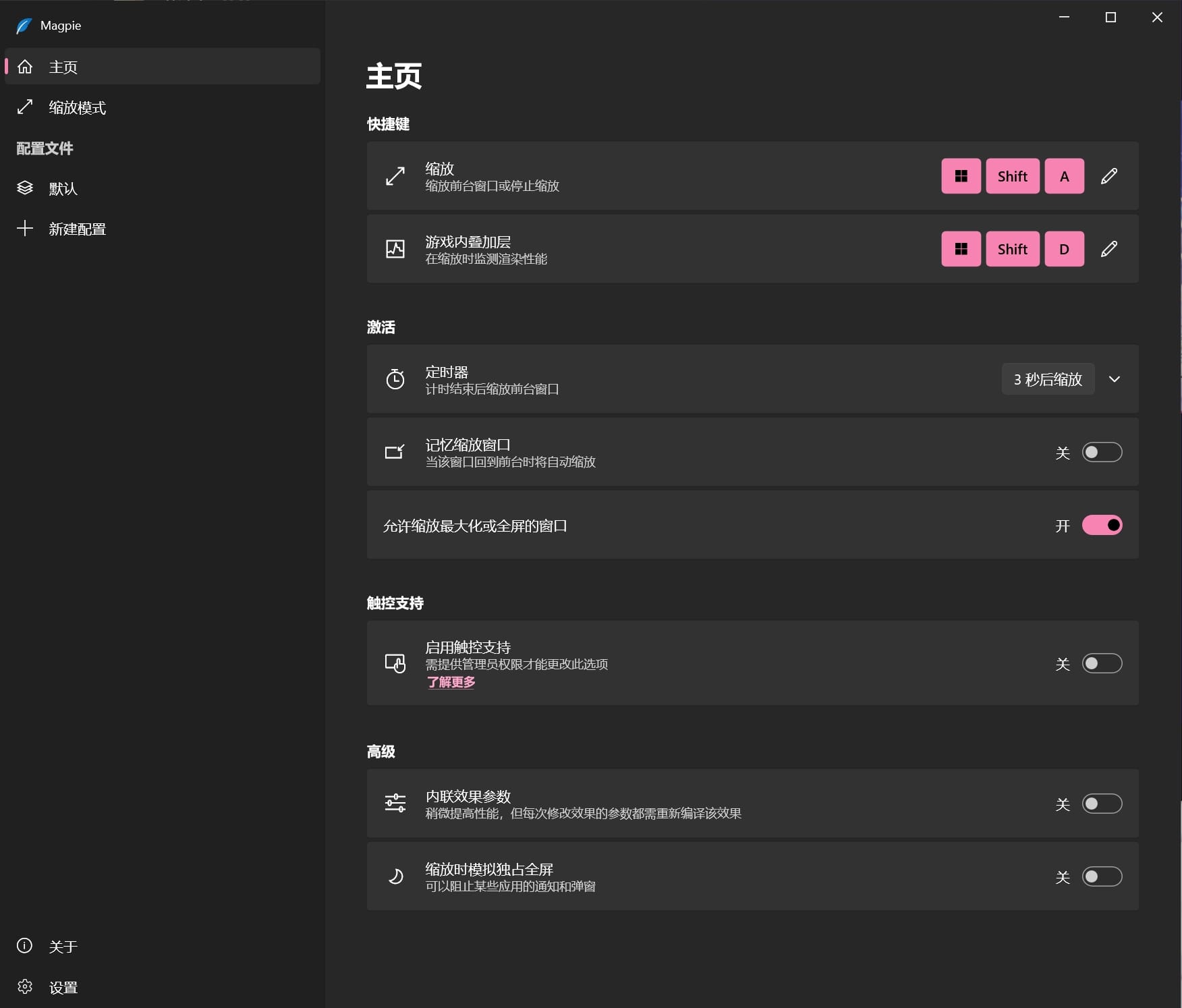
The most important step is how to configure!
Click on Scaling Mode on the left, and you will see some default modes. Click on Create New Scaling Mode at the bottom, give it a name to customize it.
Click the small arrow on the right of the newly created scaling mode, and after clicking Add Effect, you will see many options. These are the model names we can choose to use, and by stringing them together according to their effects, different results can be achieved.
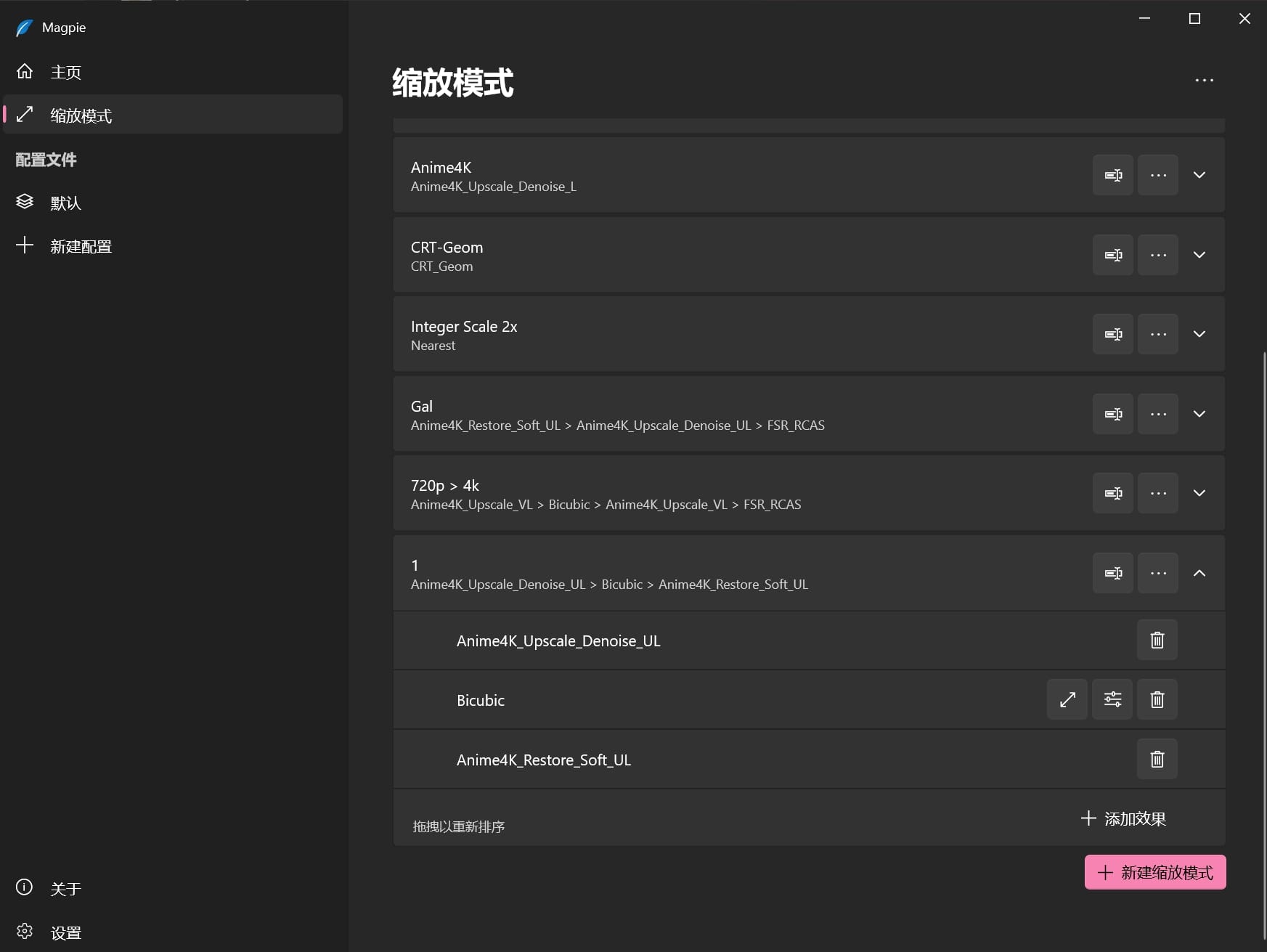
So how do you know which effects to choose?
I think the first step is to clarify the resolution of the gal you want to scale and the resolution of your screen (or the resolution you want to achieve).
If the gal's scaling does not match the screen's resolution, it may result in the game not being fully displayed or having black borders around it.
Here is the author's introduction to the effects of each model, feel free to check it out: https://github.com/Blinue/Magpie/wiki/内置效果介绍
I think this is particularly important:
Anime4K_Upscale family: Anime4K provides anime-style image scaling algorithms. The Denoise variant includes noise reduction effects, and the GAN variant is experimental, preserving more details. S, L, VL, UL increase performance requirements sequentially
Output size: Twice the input
Upscale types, for instance, double the original resolution of the game.
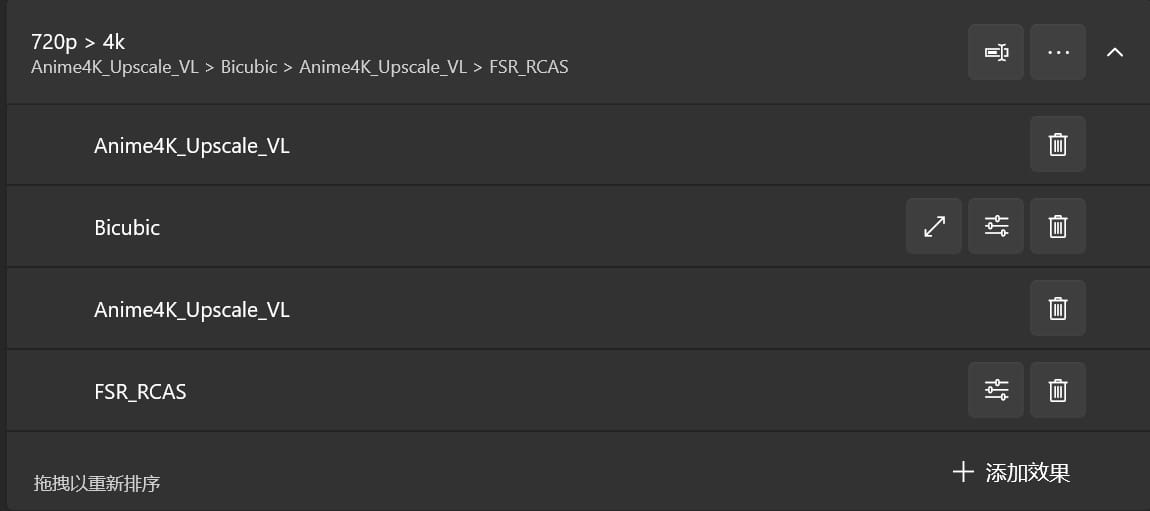
- For example, to achieve 720p to 4k, you can upscale twice, 720p → 1440p (2x) → 4K (1.5x).
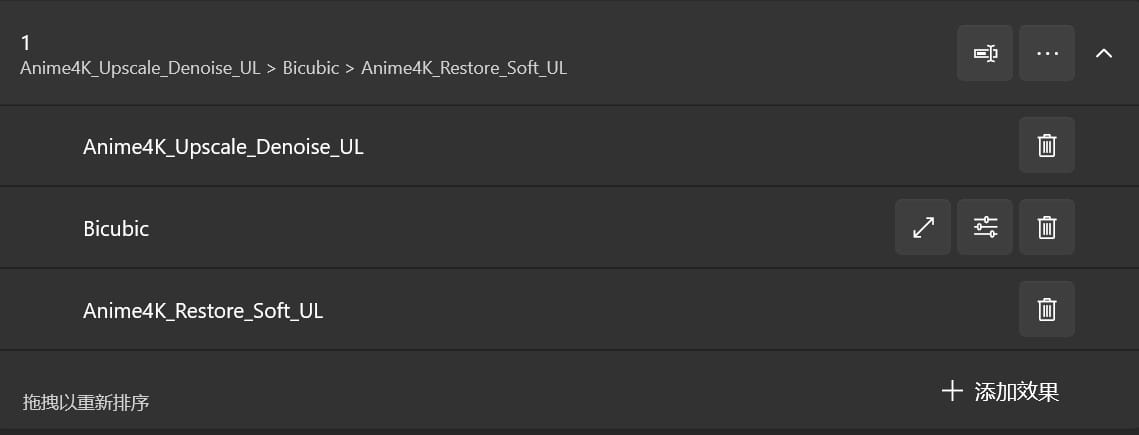
- While 1080p to 4k only requires one upscale.
Another important point is S, L, VL, UL increase performance requirements sequentially. If you find your computer lagging after running, it means the configuration is insufficient, so you can lower it by one level.
Parameter Sharing
My graphics card is a 10G RTX3080.
For 720p to 4k, I set it up like this:
For 1080p to 4k, I set it up like this:
Final Step
Select Profile on the left under Default:
- Change
Scaling Modeto the newly created one - Select
Capture MethodasGDI - Under
Performance Tab, select your graphics card forDisplay Card(not shown here)
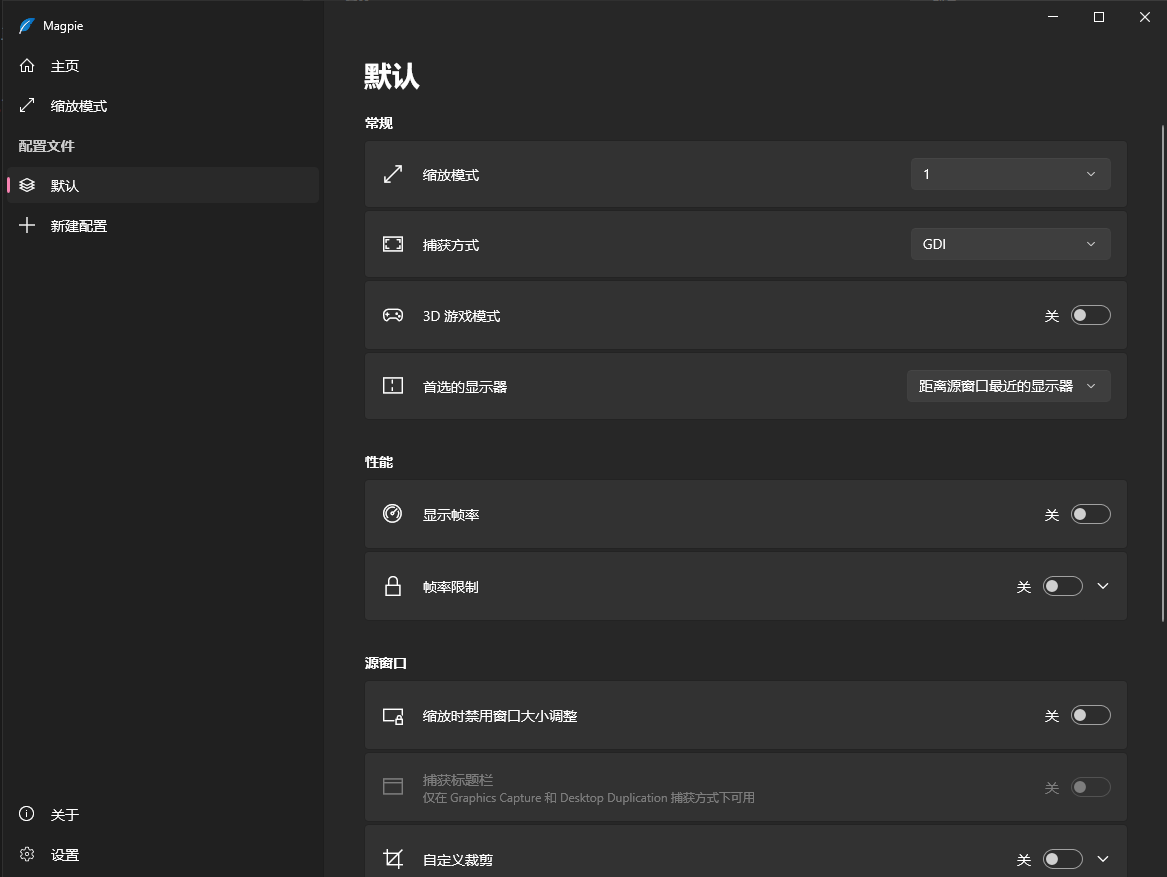
After all configurations are complete, use the shortcut key win + shift + A to scale the game window!
Conclusion
I hope everyone can enjoy the process of playing galgames more after learning this!
If you like it, remember to give a thumbs up~